
If your issue is a 'No Boot Device Available' or 'No Bootable Devices Found' error please see this article
https://www.support.drmem.com/hc/en-gb/articles/360020118138-Hard-Drive-Missing-or-no-boot-device
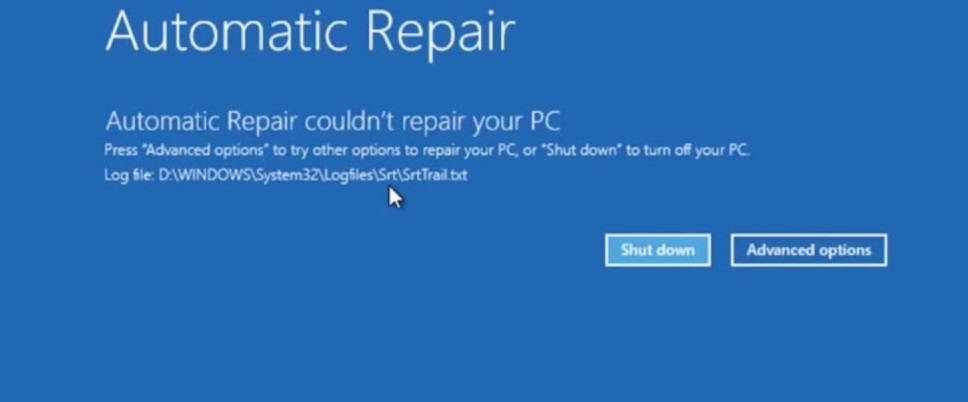
However if you are having problems with Windows starting or are getting stuck at an Automatic Repairing Windows screen, please continue below
You will need to create a Windows USB Drive
You will need a clean USB thumb/pen drive 8gb or larger.
Any data already on the USB drive will be lost
Download Windows 10 USB media creation tool]
http://go.microsoft.com/fwlink
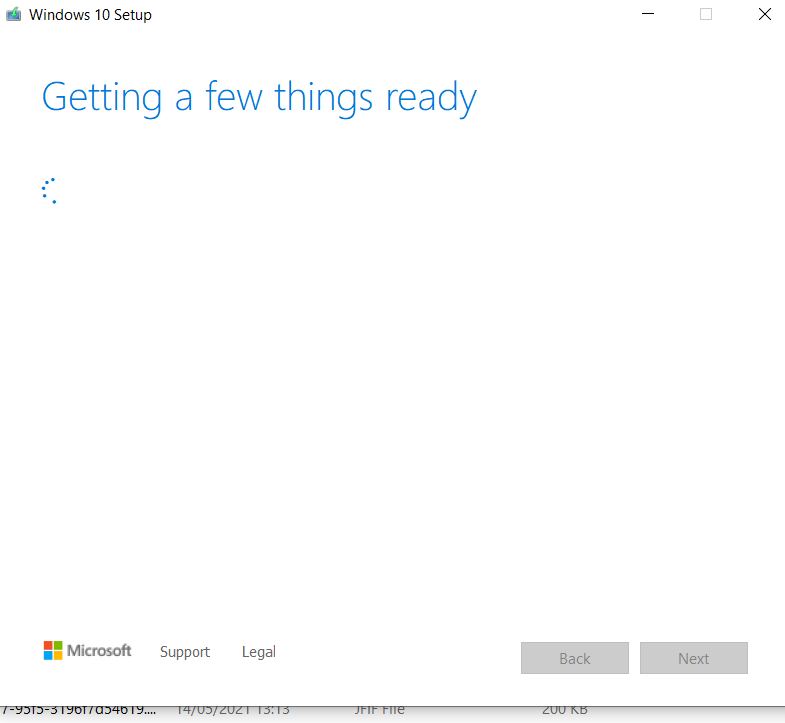
1. Open up the Media Creation Tool you just downloaded and click run.
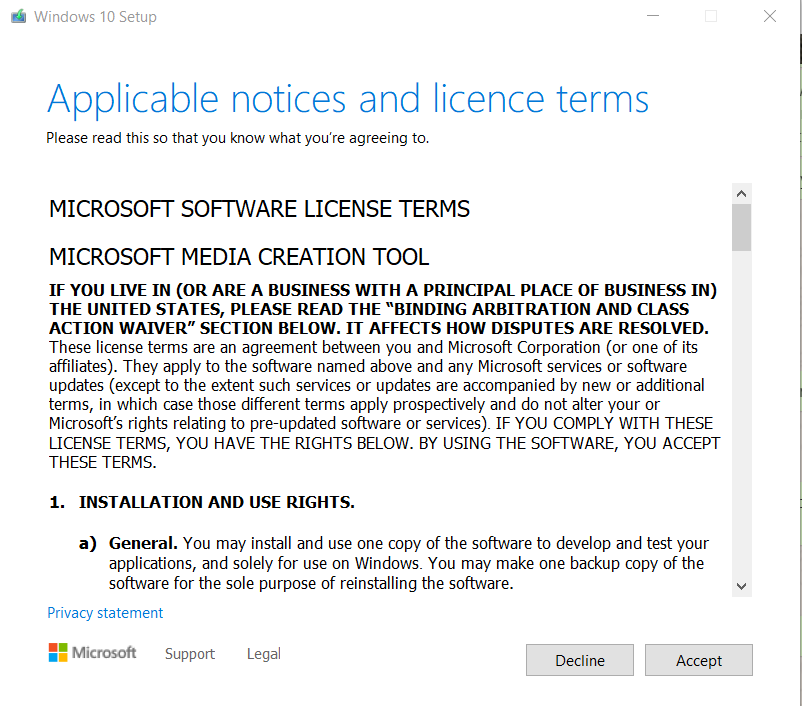
2. Click Accept the license terms.
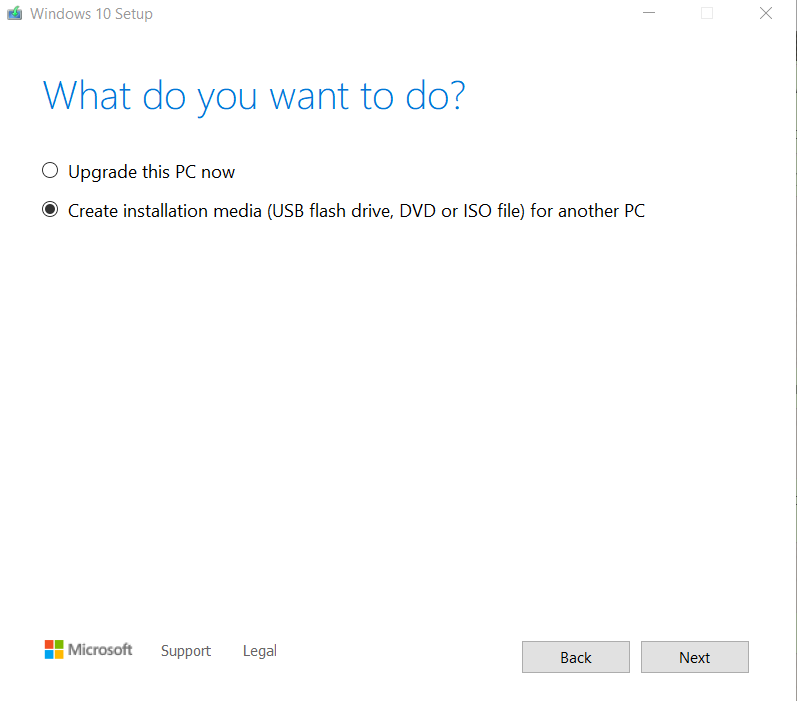
3. Select 'Create installation media for another PC' and click next.
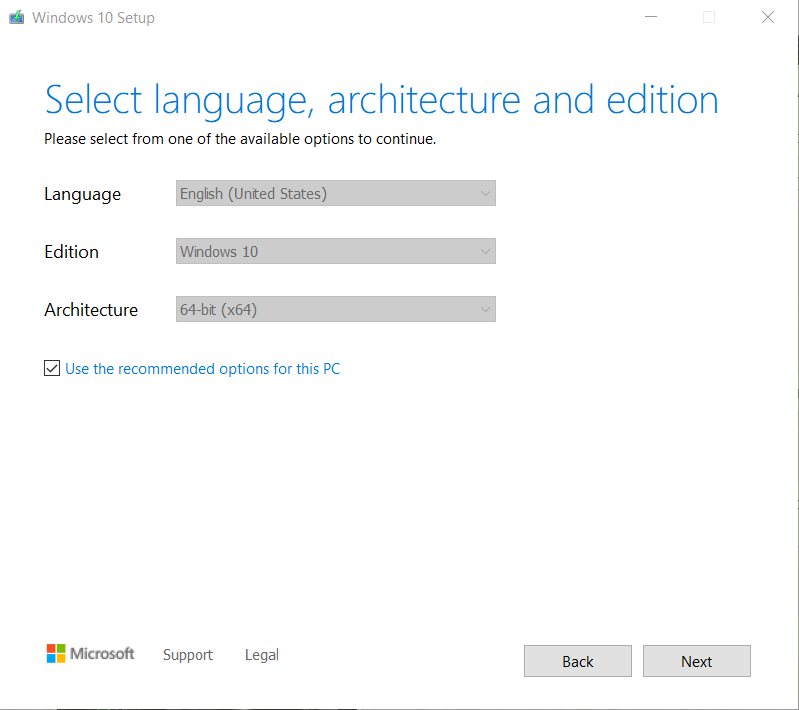
4. Either 'Use the recommended options for this PC'
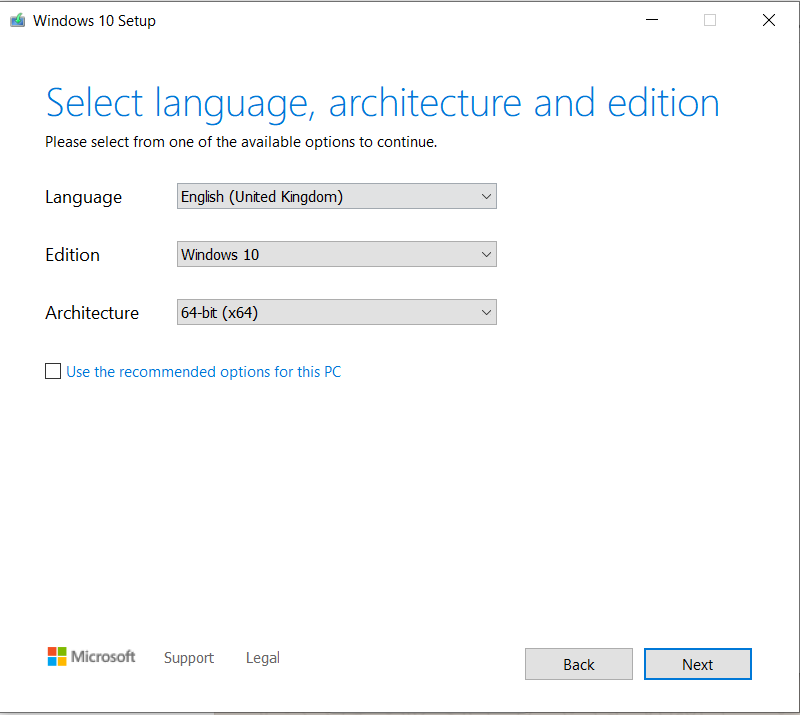
OR Select your Language, Edition: 'Windows 64-bit and click next
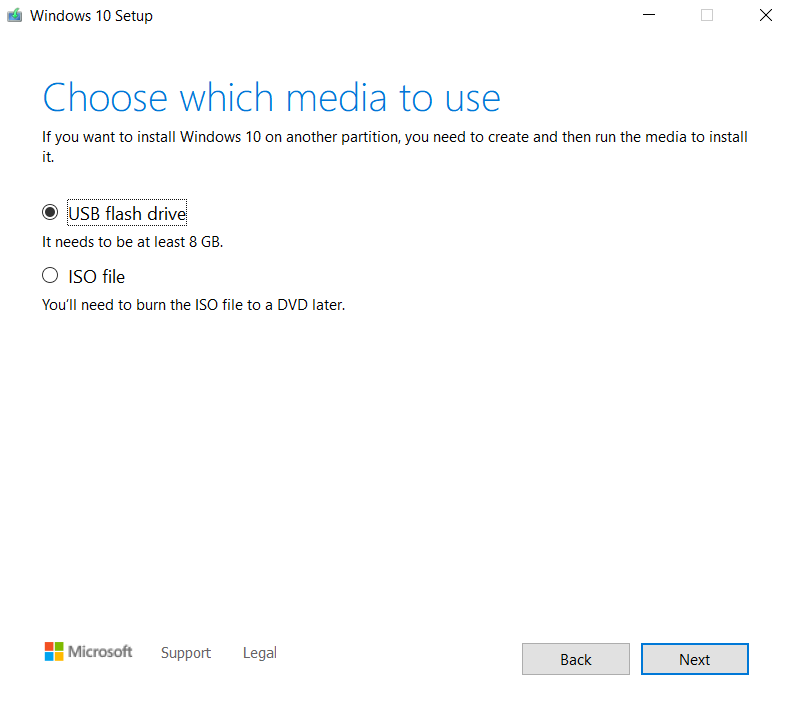
5. Select 'USB' Flash Drive.
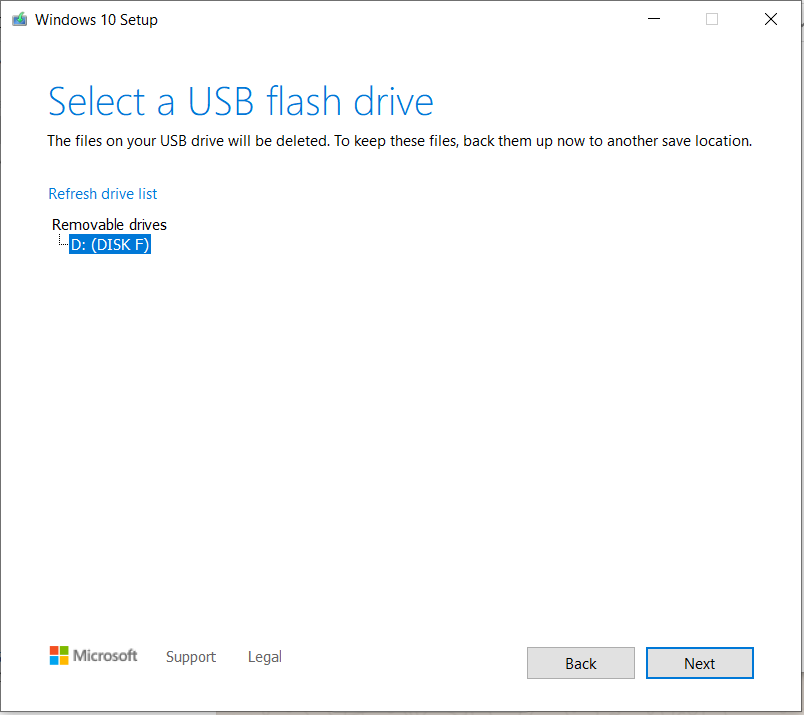
Wait for the file to download and have the USB inserted in the computer.
(Warning! This will destroy/wipe all data existing on the USB device!)
Wait for the process to finish then put the USB memory stick in one of the rear USB ports on the gaming PC.
On the PC
1. Start your Gaming PC and repeatedly press/tap the Del key to enter the system BIOS.
In the Aptio Setup Utility/BIOS screen go to Advanced
Then SATA configuration to check SSD's and HDD's are detected properly
2. Press Escape to come out of SATA Configuration then go into Boot along the top menu
3. Select the USB Drive or UEFI USB boot device as the first boot device of your computer.
Note in this picture the USB boot device is the KingstonDataTraveler. Yours might be the manufacturers name of the USB device
4. Move the USB device to Boot Option #1
5. And the SSD to Boot Option #2
In some cases you will need to go into Hard Drive BBS Priorities menu and make the same changes
6. Press F10 & Y to Save the changes of the settings.
7. Your computer will reboot and should try to boot from the USB media
1. Wait for a short time for the following screen to display
2. Once Windows Setup loads, you will see the Windows Setup window...
Choose your Windows Setup options / Select your Regional Settings
(preferred language, keyboard type, and time/currency format), then click Next.
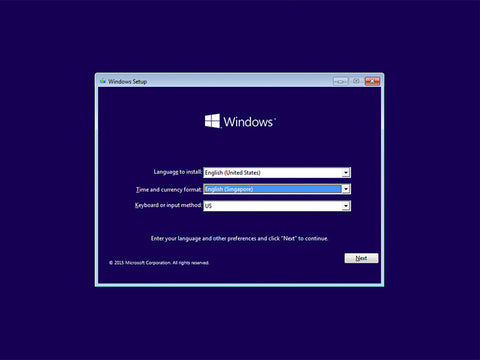
3. Click the 'Repair your computer' option at the bottom

Access Command Prompt
Put the USB Memory stick in one of the rear USB ports
Boot from USB media
Choose Repair Your Computer after the initial setup window
Click Troubleshoot
Click Advanced Options
Click Command Prompt
You will now be looking at a black screen where you can type commands
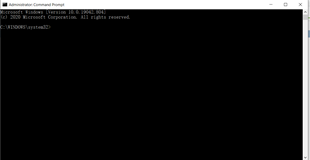
Try the steps below in turn.
After each step remove the USB drive and allow the PC to try to start normally
However If the step fails to fix the computer, restart and boot from the USB media again.
Then try the next step.
Checkdisk
Type
Chkdsk c: /f/r/x
Press enter
This command will take some time to complete
Restart the computer when finished
SFC
Type SFC /Scannow
This will attempt to repair any corrupt/damaged windows files
If the scan finishes without any errors or finds errors & fixes them, reboot the computer as normal.
DISM
Type DISM /Online /Cleanup-Image /RestoreHealth
This will fix any corrupt files but also download any missing files it needs
Once complete run SFC /Scannow again
Turn off Automatic Startup Repair
Type
bcdedit /set {current} recoveryenabled No
Press enter
Fix Boot and Rebuild BCD
- Type bootrec.exe /rebuildbcd and press Enter.
- Type bootrec.exe /fixmbr and press Enter.
- Type bootrec.exe /fixboot and press Enter.
- Type exit and press Enter
- Restart your PC.
Delete Problem file
Type c:
Type cd /
Type c:\windows\system32\logfiles\srt\srttrail.txt
Type a text file will open up
look for a line which says something like this 'Boot critical file c:\windows\system32\drivers\vsock.sys is corrupt'
Make a note of the filename which I've highlighted in red in this case vsock.sys (but the filename will be different for you)
Navigate to the folder where the file is located
So
Type cd /
Type c:\windows\system32\drivers
Type Del vsock.sys (in this example)
Reboot your computer
If you still cannot boot into Windows we will have to reinstall a fresh copy of Windows 10 using the USB Media
https://www.support.drmem.com/hc/en-gb/articles/360018053558-Install-Reset-Windows-from-USB-media-1
Comments
0 comments
Please sign in to leave a comment.