
Motherboard and CPU Connections
If your PC will not power on at all. Or powers on then off again immediately.
First Check that the power switch on the back of the PC is set to ON
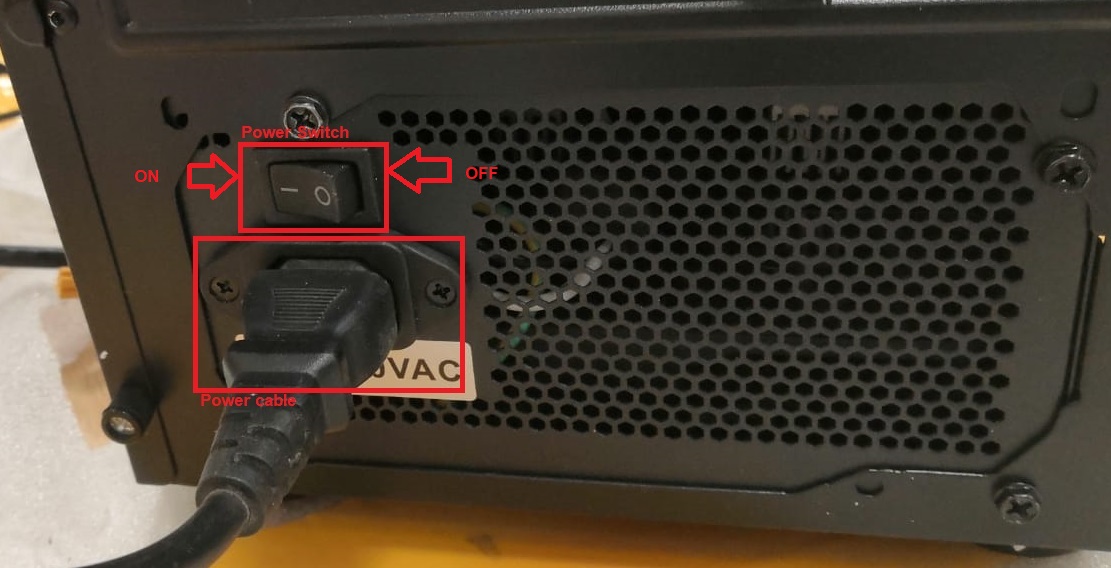
If your PC will not power on at all. Or powers on then off again immediately.
After you have checked the power lead and your plug sockets, the problem is most likely to be caused by an internal cable that has come slightly loose or disconnected.
Most no power issues are caused by one of three cables
To check these cables
1. Press the PC power button for 15 seconds, or until the PC goes fully off.
2. Turn off the PSU at the back of the PC (The switch can be found at the bottom of the case where the power lead plugs in).
3. Remove the Mains Power Lead
4. Lay the PC flat on its side so you can work confidently & comfortably
5. Remove the glass side panel
6. Make sure the black power cable to the motherboard is fully plugged in and clipped in. A short video explaining connections: https://youtu.be/0QsaQOExrZA
7. Make sure the CPU power cable is fully plugged and clipped in, this can be found on the top left corner of the motherboard. it's a black square cable with four pins.
8. Make sure the CPU fan is fully pushed down and flush with the motherboard.
9. Reinsert mains power lead & turn PSU back on.
10. Turn the PC back on using the Power button on top or the front of the PC. Just press the button once to turn on, no need to hold it down.
If you still have no power, check the connections for the ON/OFF button & Power LEDs
https://www.support.drmem.com/hc/en-gb/articles/360018374878-PC-Case-Connections-1
Then if you still have no power check the CPU fan is secure
https://www.support.drmem.com/hc/en-gb/articles/360020966957-CPU-Fan
Comments
0 comments
Please sign in to leave a comment.