
No Power or No display
Please check you have the HDMI cable plugged in to the correct HDMI socket see the image below
Please note if you ordered one of our systems without a Gaming Graphics Card/GPU you will only have one HDMI socket and you should the socket marked 'Do not Use' in the image.
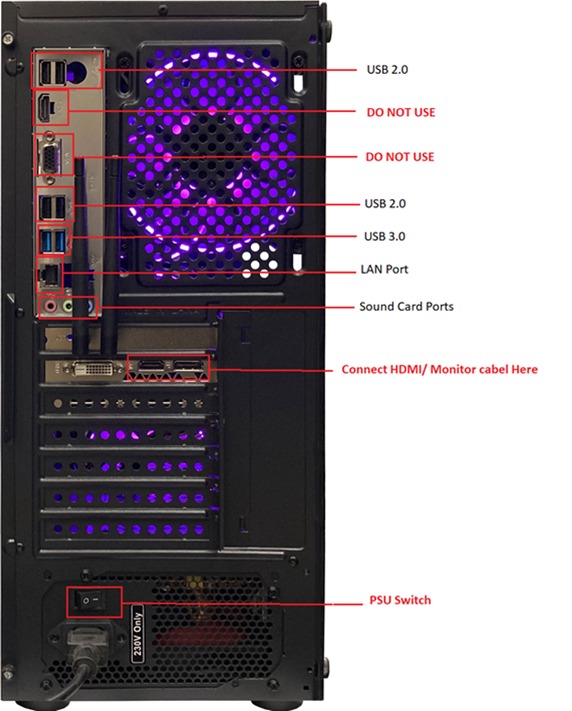
Please make sure the cables are firmly seated both in the PC or the Monitor or TV
In some cases you will need to use the OSD (On Screen Display) function of your TV or Monitor to select the correct input, please check the manual or the website of the manufacturer of your device for details if you are unsure how to do this.
After you have checked all this if you are still getting no display some of the connections might have come loose during transit so please do the following steps:
First check are you getting no power (no fans spinning no lights on PC at all) & no display, or power (lights and fans on) but no display
If you are getting no power at all please refer to the following article
https://www.support.drmem.com/hc/en-gb/articles/360018332958-No-Power
If you are getting power but still no display please try the following steps
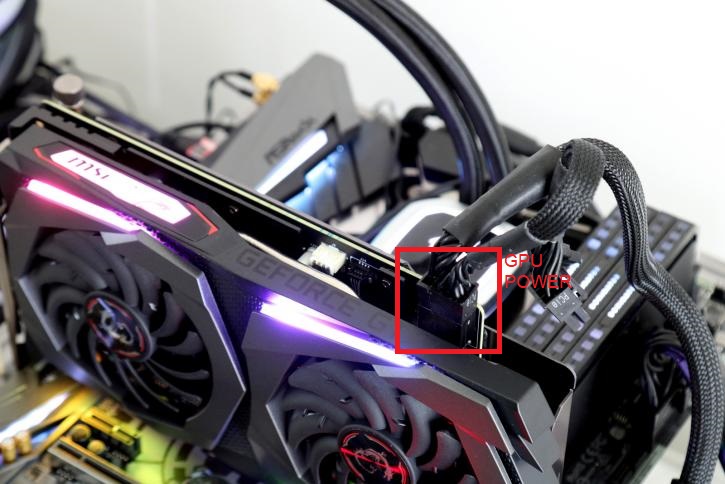
Check the Graphics Card GPU Power cable
Make sure that the power cable is plugged into the GPU
Sometimes this connection is on the back of our GPU cards and on some models on the top.
Some of our cards do not need additional power so don't have the connection at all.
If this cable is not plugged in or not fully inserted you will get no display at all or intermittent display & stability issues
Check the Memory
1. Shut down the PC using the power button on the top of the PC, hold button for 15 seconds.
2. Turn off the PSU at the back of the PC (a switch can be found at the bottom). Remove power cable.
3. Remove both RAM sticks and clean gold connectors on both rams using alcohol or nail polish remover. And put them back. Make sure the ram makes a click sound when you push each corner in. A short video on how to uninstall and clean the ram: https://youtu.be/0GhxMyPgYOo
4. Plug power cable back in & turn PSU back on.
5. Turn the PC back on using the Power button on top of the motherboard. Only press the button once and leave for a few seconds.
6. If you now have output on your screen you can now use your PC normally.
Check the Individual Memory RAM Sticks & Slots
If you still have no display or instability/crashing. We need to test the individual Memory/RAM sticks on their own and the individual DIMM Slots on the motherboard
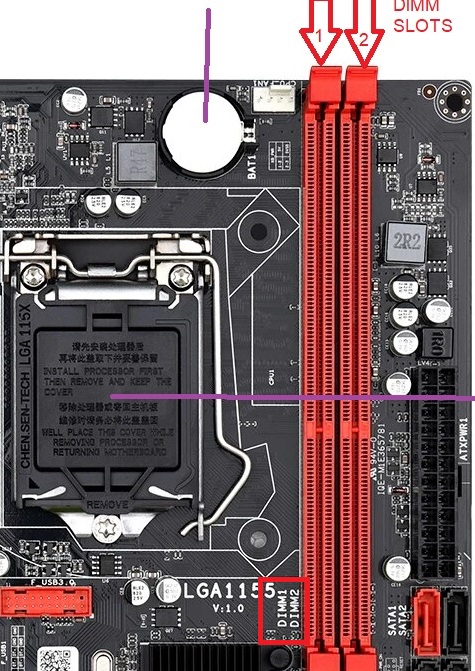
1. Make a mental note of Memory stick 1 & 2
2. Take both RAM sticks out and clean.
3. Then put RAM stick 1 in DIMM Slot 2 the memory slot furthest away from the processor fan, with nothing in DIMM Slot 1 the slot closest to the PC Fan
4. If that test is successful, reverse and repeat the steps above and install RAM stick 1 in DIMM Slot 1 the slot closest to the processor fan, with nothing in DIMM Slot 2.
5. Repeat the steps again but this time only using Memory Stick 2
6. Make a note of which stick or slot appears to be faulty
If these steps don't resolve your display issues or you can only get display with one memory stick installed please contact us.
Comments
0 comments
Please sign in to leave a comment.