
Most instability issues are caused by missing or damaged OS (Windows 10) files or drivers
So firstly lets try to fix or eliminate any software issues
However if Windows or the repair processes crash while trying to perform software the software fixes. Please then try to resolve any hardware issues first.
See below check for hardware issues.
Check Drivers and system files
So generally the first thing to try is to fix software issues
Particularly drivers for your GPU or graphics card, and your Windows 10 system files
First make sure windows is fully up to date
https://www.support.drmem.com/hc/en-gb/articles/360017907017-Windows-update-1
Then make sure the drivers for your GPU or gaming card are up to date and/or not causing conflicts in your game
https://www.support.drmem.com/hc/en-gb/articles/360018204717-Previous-Drivers-1
If you have tried all the above steps and are still having issues the next steps are to repair or reinstall Windows 10
To repair Windows
https://www.support.drmem.com/hc/en-gb/articles/360017901077-Reset-Windows-SFC-DISM
To reinstall Windows
https://www.support.drmem.com/hc/en-gb/articles/360017901737-Reset-Windows-Refresh-Windows-1
After this we will need to check for hardware issues
Check the internal cables
1. Press the PC power button for 15 seconds
2. Turn off the PSU at the back of the PC (a switch can be found at the bottom).
3. Make sure the black power cable to the motherboard is fully plugged in and clipped in. A short video explaining connections: https://youtu.be/0QsaQOExrZA
4. Make sure the CPU power cable is fully plugged and clipped in (this can be found on the top left corner of the motherboard. it's a black square cable with four pins. See image).
5. Make sure the CPU fan is fully clipped in and flush with the motherboard.
6. Turn PSU back on.
7. Turn the PC back on using the Power button on top of the motherboard. Only press the button once and leave for a few seconds.

Check the CPU Fan
Also please check there is no movement in the CPU fan it should be properly and firmly held in place at all 4 corner points
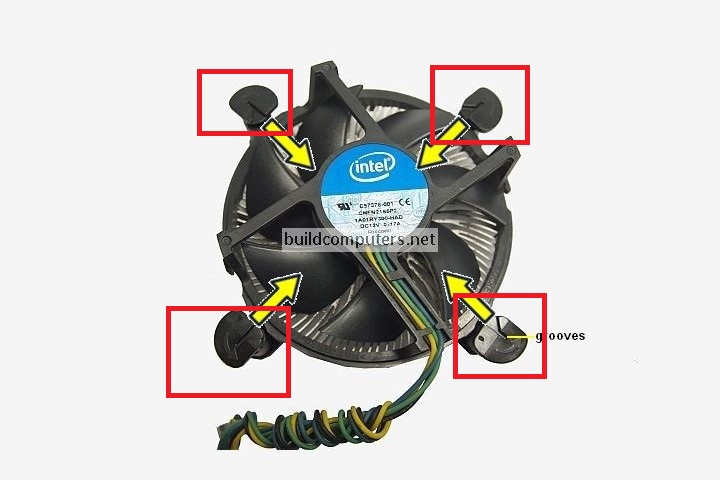
See the red boxes and the arrow on the locks should be turned all the way clockwise to lock the CPU cooler down
If one of these connections feels loose turn the arrow counter clockwise and push the connector down firmly but carefully, until you hear or feel the pin click into place
Then turn the arrow back fully clockwise to lock.
You may need to do the same with the opposite connector to lock both sides firmly in place
Please be careful not to remove the fan, we are just checking that it isn't loose.
Check the Memory
The next step is to clean both the memory and the slot the memory is installed into
1. Shut down the PC using the power button on the top of the PC, hold button for 15 seconds.
2. Turn off the PSU at the back of the PC (a switch can be found at the bottom). Remove power cable.
3. Remove both RAM sticks and clean gold connectors on both rams using alcohol or nail polish remover. And put them back. Make sure the ram makes a click sound when you push each corner in. A short video on how to uninstall and clean the ram: https://youtu.be/0GhxMyPgYOo
While the memory is out of the slot, clean the slot with compressed air, or a fine, clean brush, blow down the slot to dislodge any dust or debris after brushing. Then reseat the memory
4. Plug power cable back in & turn PSU back on.
5. Turn the PC back on using the Power button on top of the motherboard. Only press the button once and leave for a few seconds.
6. Test for crashes
Check the Individual Memory RAM Sticks & Slots
If you still have instability/crashing. We need to test the individual Memory/RAM sticks on their own and the individual DIMM Slots on the motherboard
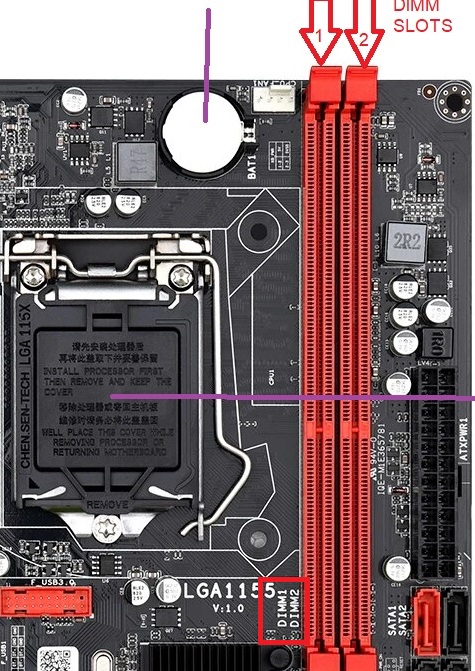
7. Make a mental note of Memory stick 1 & 2
8. Take both RAM sticks out and put RAM stick 1 in DIMM Slot 2 the memory slot furthest away from the processor fan, with nothing in DIMM Slot 1 the slot closest to the PC Fan
9. If that test is successful, reverse and repeat the steps above and install RAM stick 1 in DIMM Slot 1 the slot closest to the processor fan, with nothing in DIMM Slot 2.
10. Repeat the steps again but this time only using Memory Stick 2
11. Test for crashes
Please let us know the results of these tests
Also please can you also take some photos inside the case so we can try to identify if anything else is loose, misplaced or damaged
Can you also take individual photos of the RAM Memory modules including the Product ID stickers and send them to us
Comments
0 comments
Please sign in to leave a comment.