
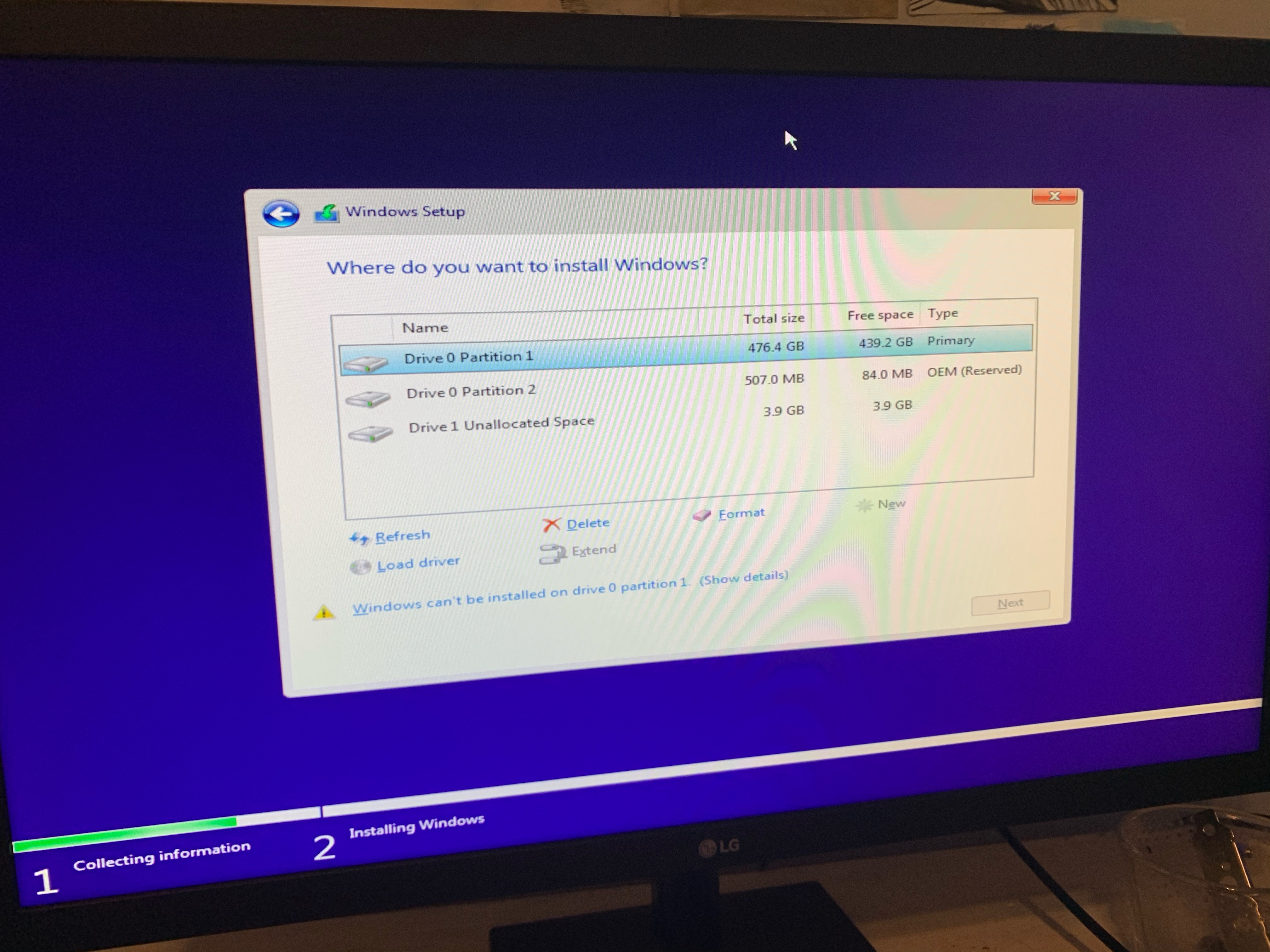
In some cases when trying to reinstall Windows 10 from a USB memory stick you will get the error
'Windows can't be installed on drive 0 partition 1'
Even when trying to install to a valid partition.
This is nothing to worry about and quite simple to fix
You will just need to clear the existing partition before you can recreate it and use the space again
In the above example with a 512gb SSD the Drive we need to fix is drive 0
Most of our customers opt for a small SSD & a large HDD
Usually 256gb SSD with 1tb HDD
or 512gb SSD with 2tb HDD
or 128gb SSD with 500 HDD
So if you not sure check your original order if it says
1TB+256GB then you have a 256gb SSD
The SSD is usually where we install Windows 10 to and usually the SSD is Drive 0
First thing to try is simply select the partition and then press delete underneath
Click to acknowledge wiping of existing data
Then if successful choose unallocated space to install to
However you might get an error unable to delete at this point
so
Reboot & Boot from your Windows 10 USB memory stick again
In some cases you may need to turn the PC off completely then power it back on again (cold boot), with the USB stick inserted
After initial screen, select Repair your computer , not Install now
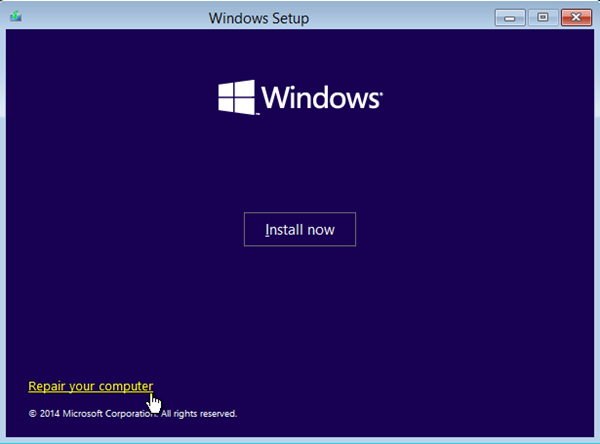
Select Troubleshoot,
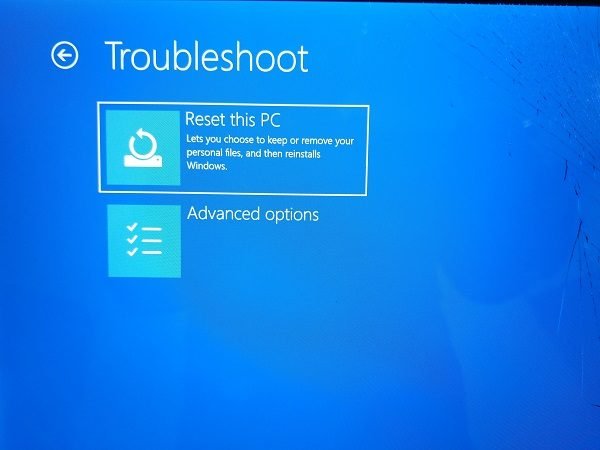
And select Advanced Options

Select Command prompt
You should now be looking at a black screen where you can type commands
Type 'diskpart' and press enter
Type 'list disk' and press enter
in the example picture above the disk we want is disk 0
So type 'select disk 0' and press enter
Type 'clean' and press enter (will wipe all partitions from the target drive)
Type convert gpt & press enter
Then exit and exit, restart & start installation process again
You should now be able to choose the section marked unallocated space to install to
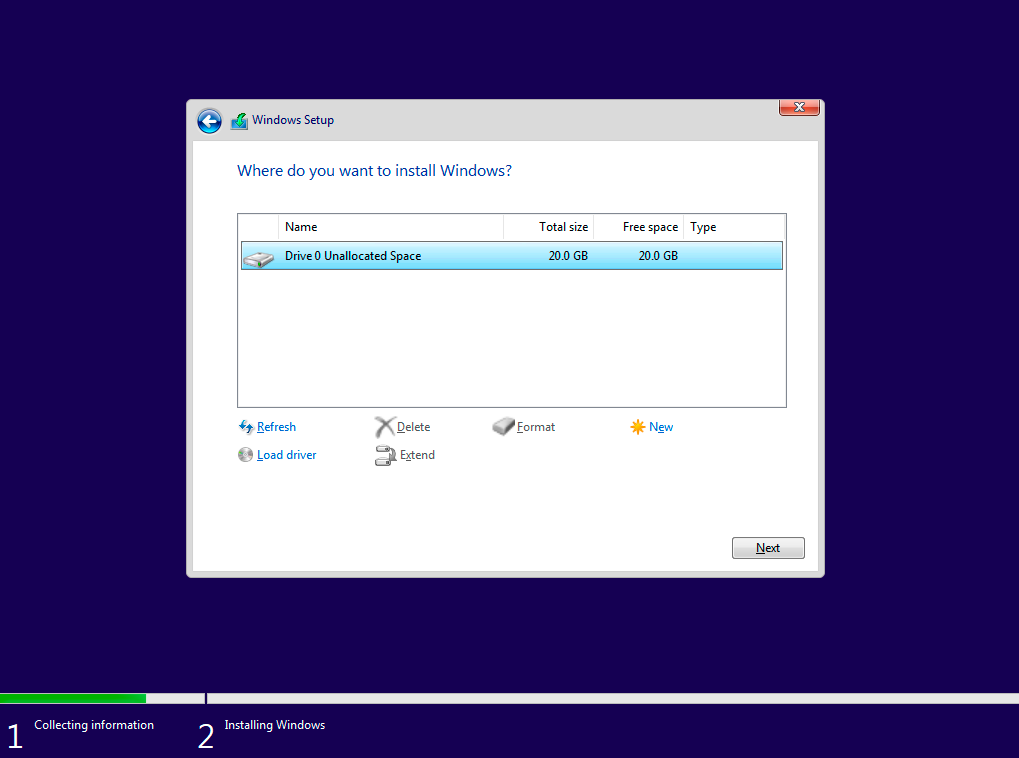
Or if the above fails
Type 'diskpart' and press enter
Type 'list disk' and press enter
in the example picture above the disk we want is disk 0
So type 'select disk 0' and press enter
Type 'clean' and press enter (will wipe all partitions from the target drive)
Type 'create partition primary' and press enter
Type 'active' and press enter
Type 'format fs=ntfs quick' and press enter
Type 'assign' and press enter
Type 'exit' and press enter
Type 'exit' again and press enter
Now, select the option to shutdown the PC
Reboot again with the USB stick inserted
Choose 'Install Now'
Now when you get to the partition selection screen you will be able to select the partition you just created.
Installation can now continue as normal.
Comments
0 comments
Please sign in to leave a comment.