
If your PC came with a remote control to control the fans please see this other article
https://www.support.drmem.com/hc/en-gb/articles/360018542598-Fan-Lights-Remote-Control-1
Otherwise please continue below
If one or more of your system case fans isn't spinning please check the connections inside the case
Turn off your PC & unplug it from the mains
then open up the rear panel. This is the black metal panel, rather than the glass panel where you can see inside the case
once removed you should see this
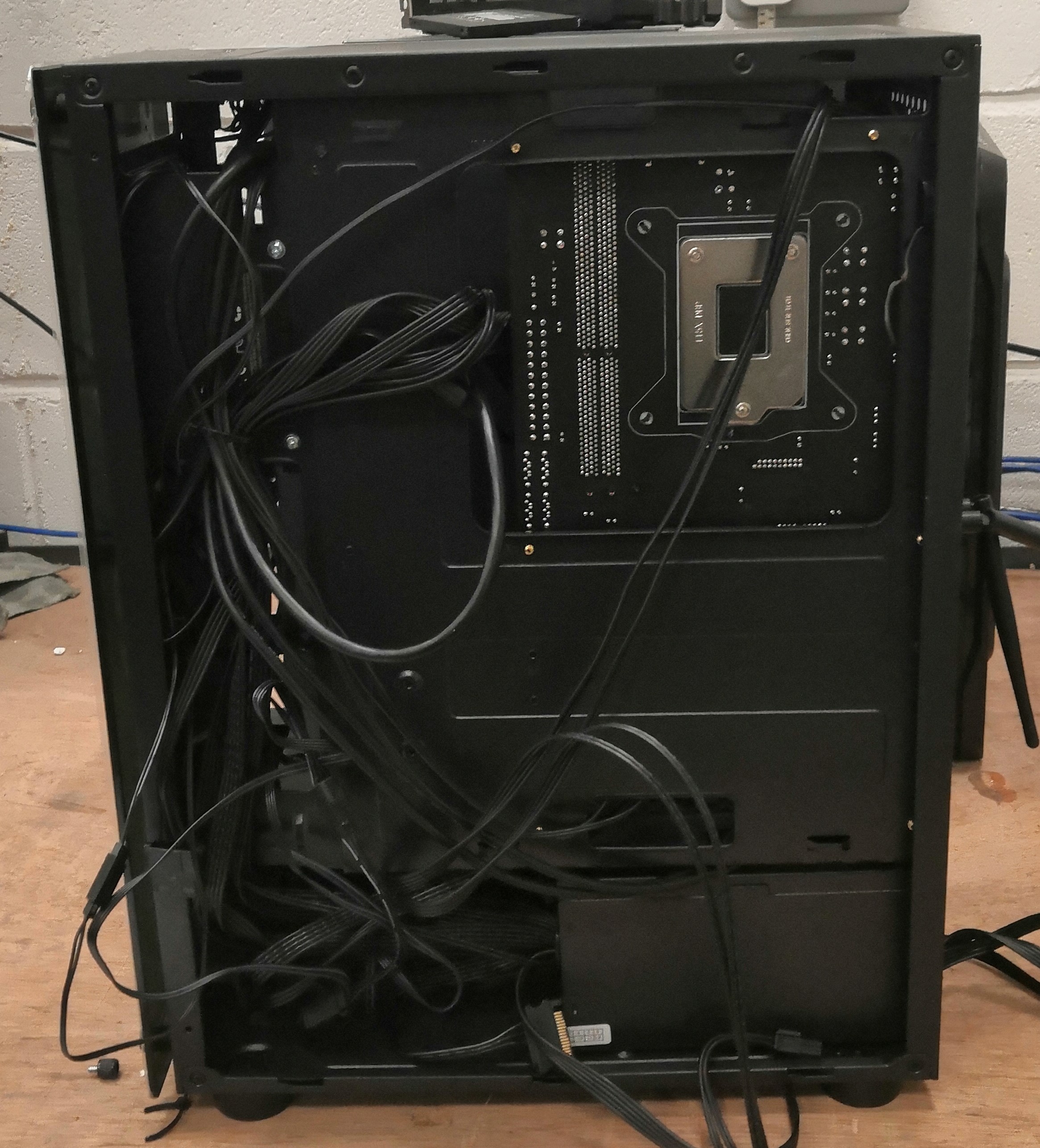
And what we are looking for is the mass of cables running from top to bottom of the case as its stood upright
so if you carefully pull the cables loose you will see 3 or 4 cables like the ones pictured
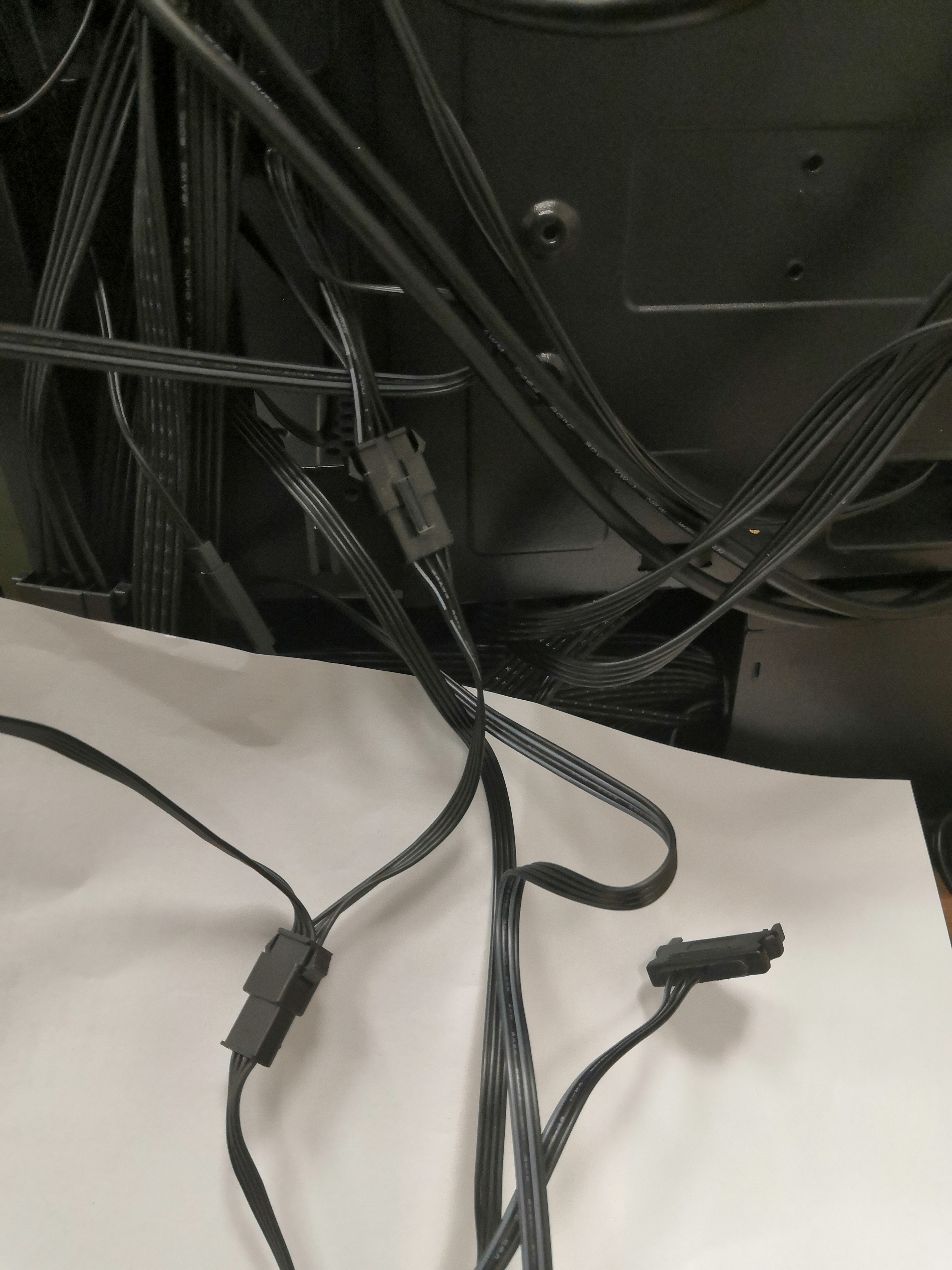
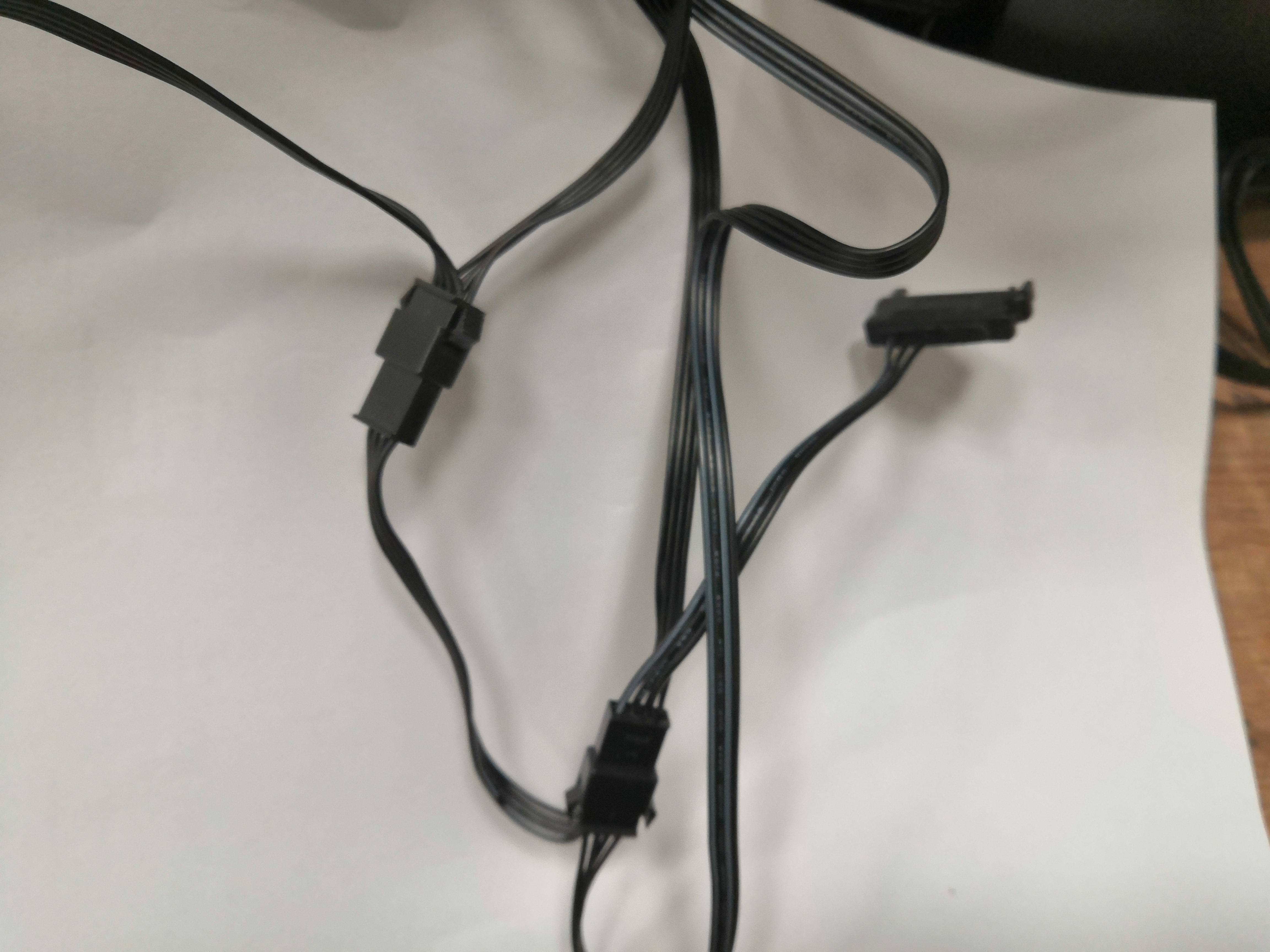
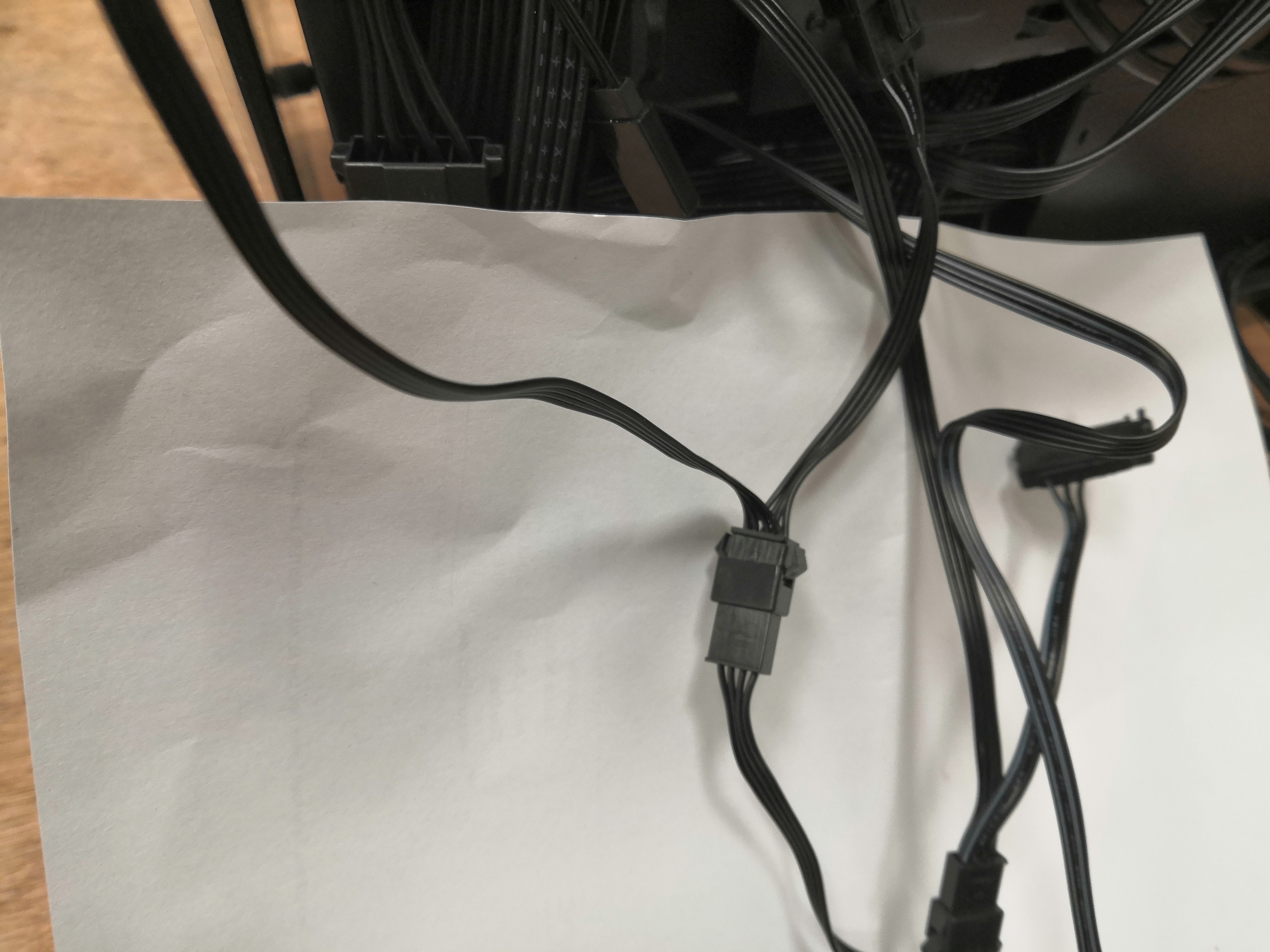
This connection supplies power to all the fans and lights, there is only one of these
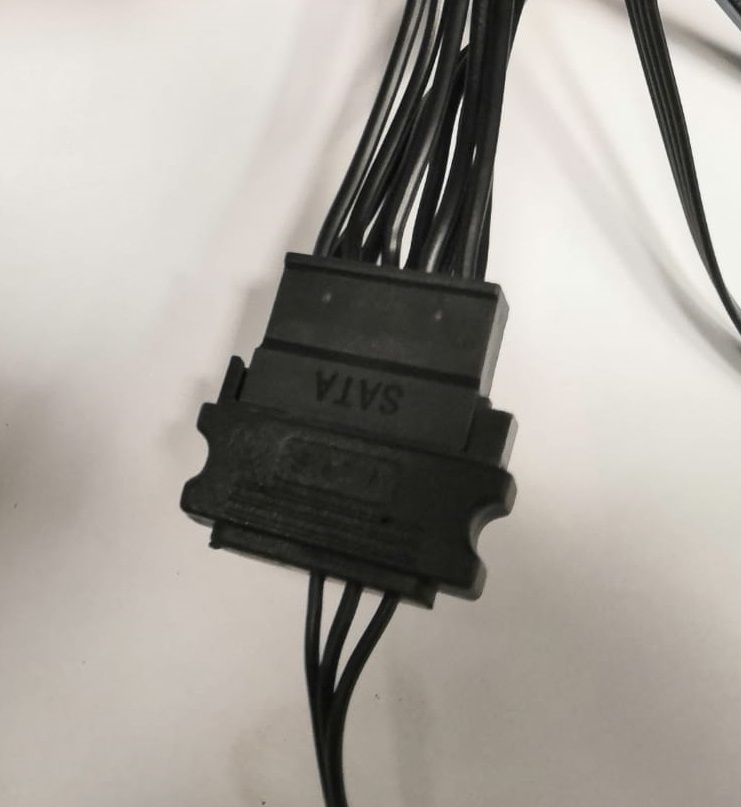
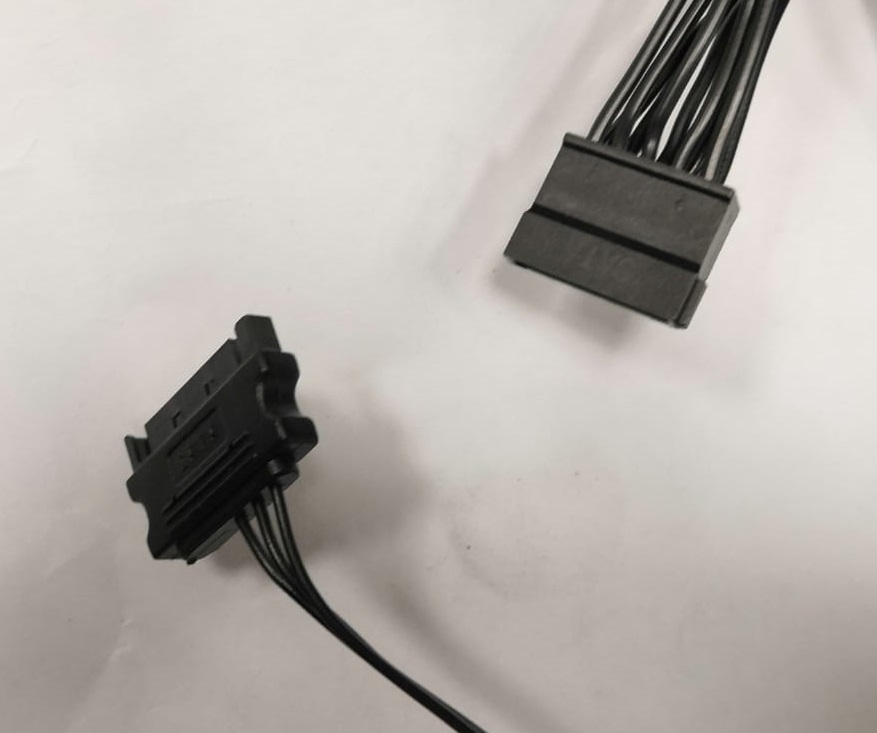
Make sure these are all connected snugly.
The best way to do this is to unplug them then reconnect them
This should ensure that all the fans are spinning correctly now & that the lights are on.
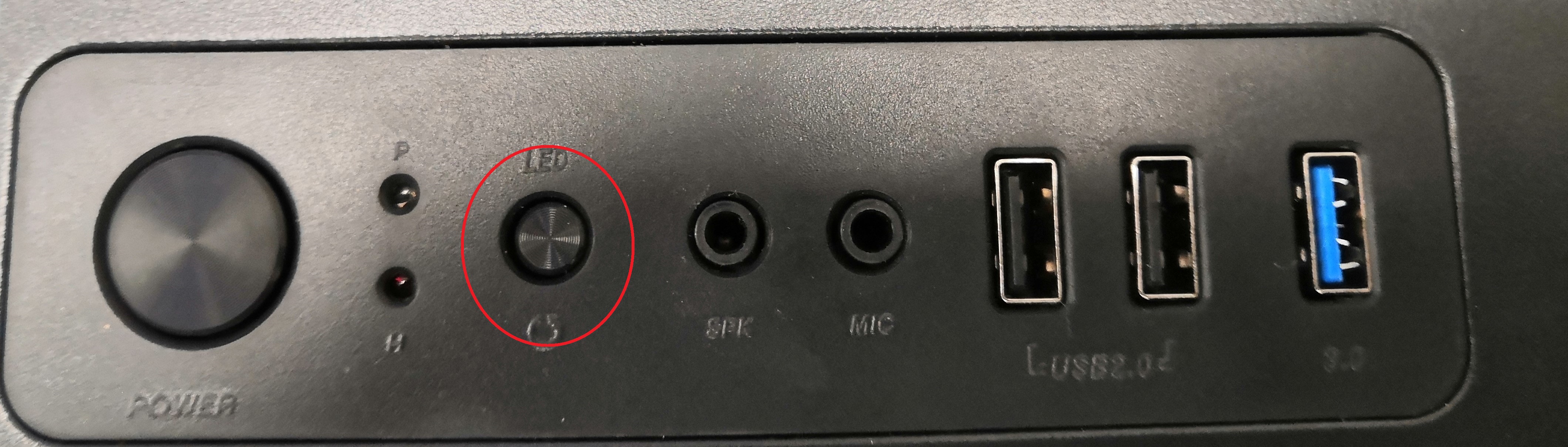
If the light aren't on or you want to change the colours , Often its just a case of pressing the switch for a couple of seconds or pressing the switch couple of times
However if the switch still isn't working usually its another little socket that just needs reseating
This connection allows the lights to change colours or be turned off with the button above
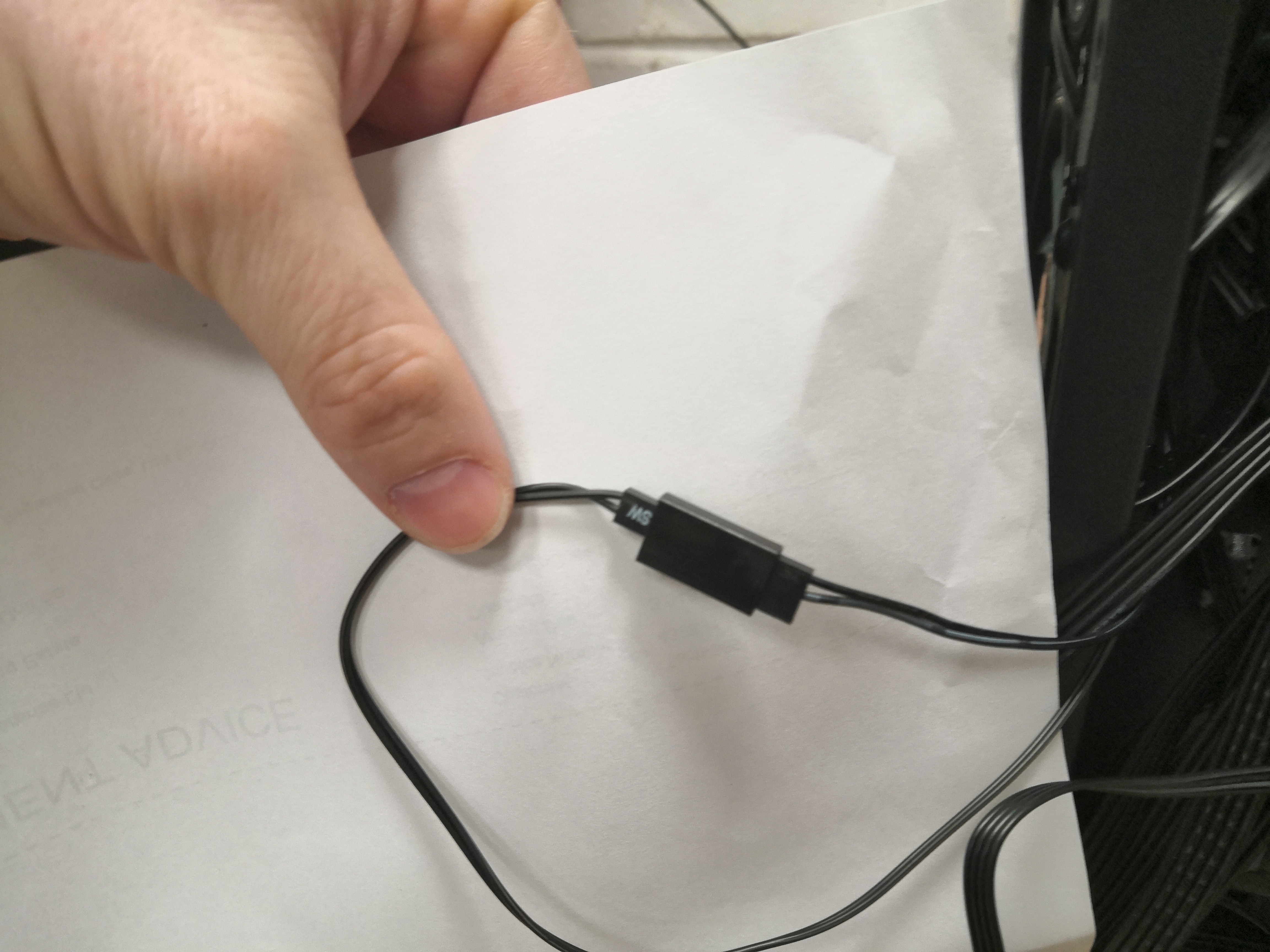
So locate this connector. Note the cable is 2 thin cables together one wire is black and the other may have white or grey print on the cable.
Unplug this connection then reseat it
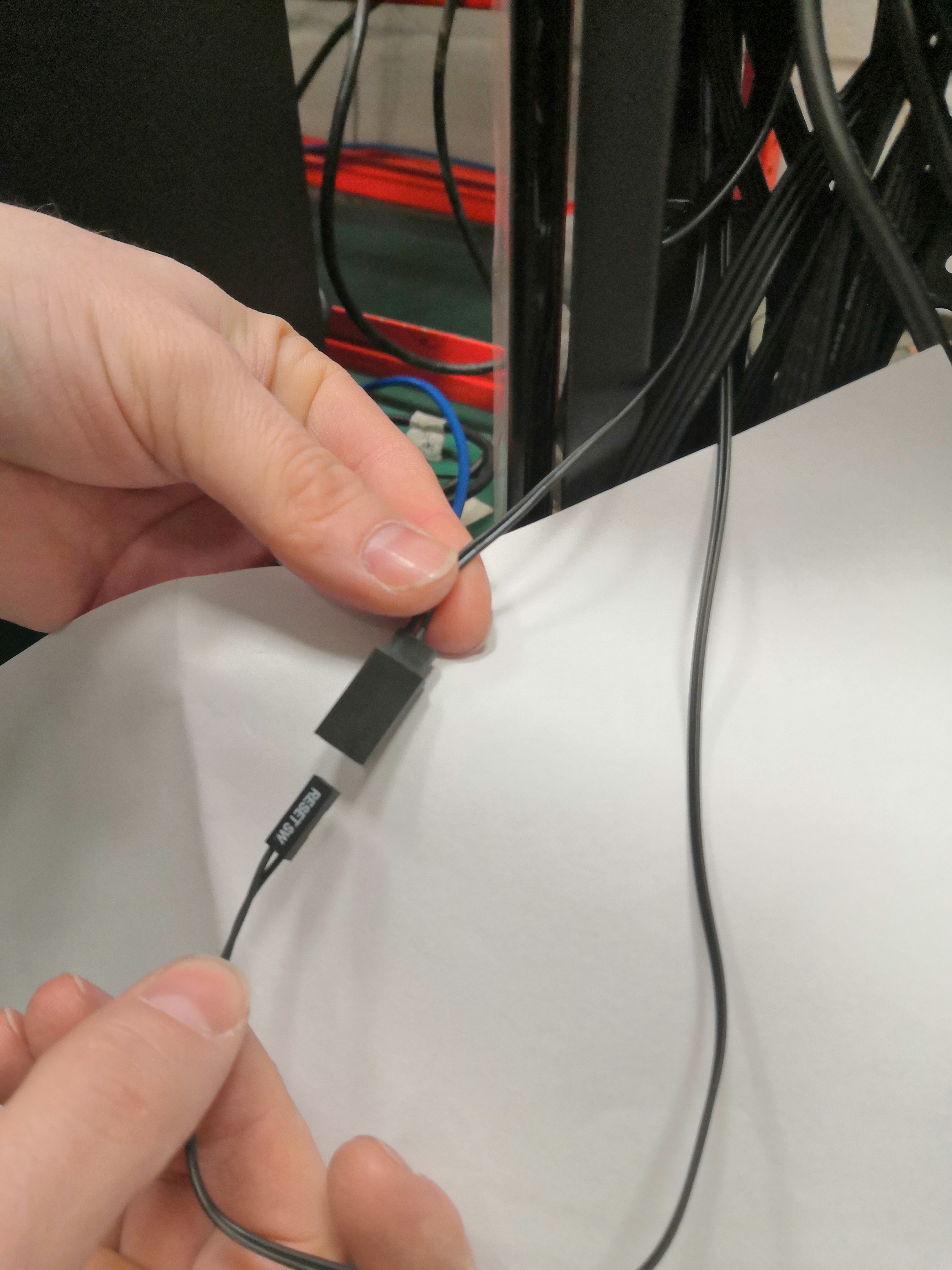
Look closely inside the larger plug, note the 2 pins make sure the holes in the smaller plug go onto the 2 pins correctly
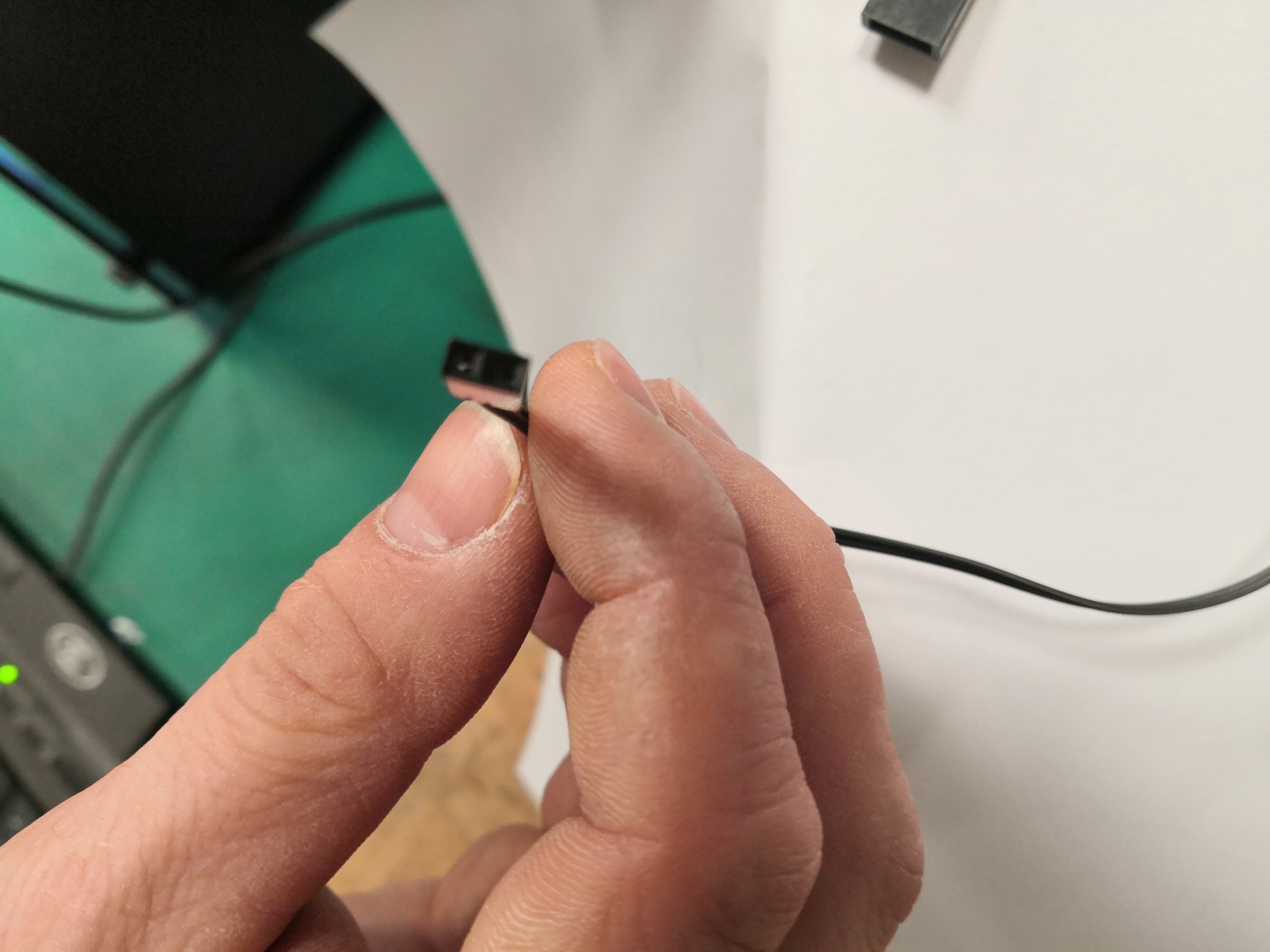
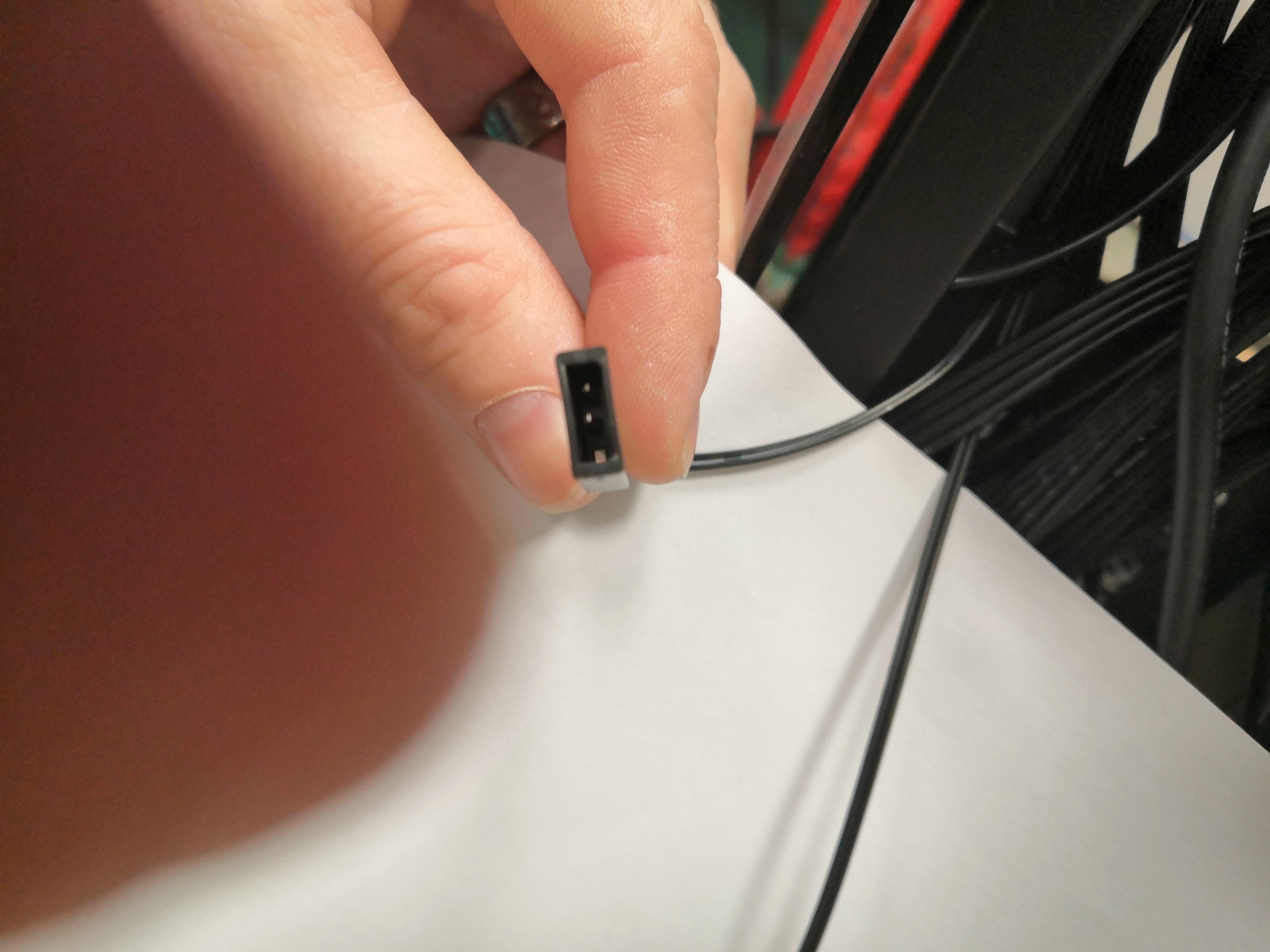
Pack the cables carefully back inside the cavity and close the rear of the case restore power & test
The light switch should work as intended now
One click to change colours and a longer press to turn the lights on or off again
If you are still having issues please send us some photos inside & on the top of your case so we can try & identify if something is unplugged or damaged
Comments
0 comments
Please sign in to leave a comment.